humane-space-tab
Cmd+Tab limited to the applications of the current macOS Space.
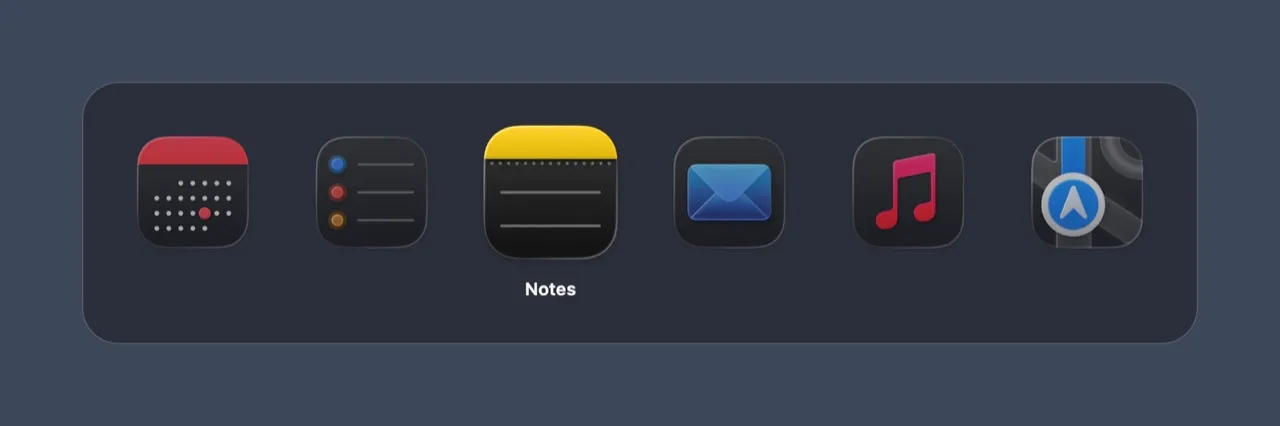
The ribbon shows what is actually on this desk, most recently used first; ⌘` does the same for the windows of the front app. Accessibility is the only permission it asks for — no Screen Recording, no network, no subprocesses. Fifteen languages, macOS 15 and later.
In development
What it does
On Cmd+Tab macOS switches between all open applications, wherever they live — which is how
the system switcher throws you onto another desk mid-thought. humane-space-tab keeps switching
inside the current Space, and extends the same Space-aware behaviour to the other macOS
gestures for grouping, hiding and revealing applications.
The app has no window of its own. It sits in the menu bar and does everything while you hold the shortcut:
- a quick tap of
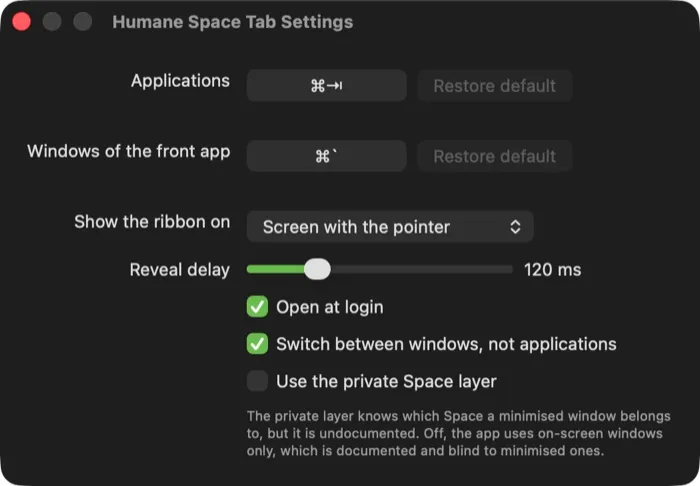
⌘Tab— under the reveal delay, 120 ms by default — switches to the previous application without showing anything, the way muscle memory expects; - keep
⌘down and the ribbon appears with the applications of this Space, most recently used first.Tabsteps forward,⇧Tabback,Escapecancels, releasing⌘switches; ⌘`lists the windows of the front application — again only the ones on this Space, so it never drags you to another desk and never un-minimises anything.
The ribbon’s looks live in profiles: icon size and opacity, padding, corner radius, frames, the background material, how the selection is marked, whether the row turns as a carousel. Fifteen languages, the system one by default.
Status: pre-release. The switcher works; the roadmap still changes behaviour you can see, so
releases stay below 1.0.
Install
brew install --cask n0sfer/tap/humane-space-tabWithout Homebrew: download HumaneSpaceTab-<version>.dmg from the releases page, open it and
drag the app onto the Applications shortcut. The zip beside it holds the same bundle.
Requirements: macOS 15 Sequoia or later, Apple Silicon or Intel.
Either way macOS asks for two things, once:
- Allow the first launch. It is refused, because the build carries no Apple Developer ID. Open System Settings → Privacy & Security, scroll to the bottom, press Open Anyway, and launch the app again. Do not strip the quarantine attribute by hand — that habit disarms the check that protects you from everything else you download.
- Grant Accessibility. The app asks as it launches, and its menu bar icon shows a warning until the grant is there; Grant Accessibility… in that menu asks again. Either way the switcher starts working within a couple of seconds, without a relaunch. macOS ties the grant to the code signature, so it has to be given again after every update.
Verify what you downloaded
shasum -a 256 HumaneSpaceTab-<version>.dmg          # compare with the release notes
gh attestation verify HumaneSpaceTab-<version>.dmg --repo n0sfer/humane-space-tab
The attestation ties the artefact to the workflow run and the commit that built it. Homebrew checks the same SHA-256 on its own.
What it can see
Accessibility is the only permission it asks for — you cannot intercept Cmd+Tab or raise
another application’s window without it. Screen Recording is never requested, which is exactly
why there are no window previews here: comparable switchers hold that permission, and it reads
the contents of every window on your screen.
No network, no AppleEvents, no plugins, no subprocesses. Keystrokes are inspected only to match your shortcut; window titles are read only while window switching is on, and only to be drawn. A test suite keeps the promises honest — it fails the build on a forbidden API.
Screenshots